Only allow remote access from someone you personally know and trust.
Fr. Andy will never ask you for bank passwords, credit card numbers, gift card numbers, Social Security numbers, or other sensitive financial information. If someone you do not know asks you to install remote access software, stop immediately.
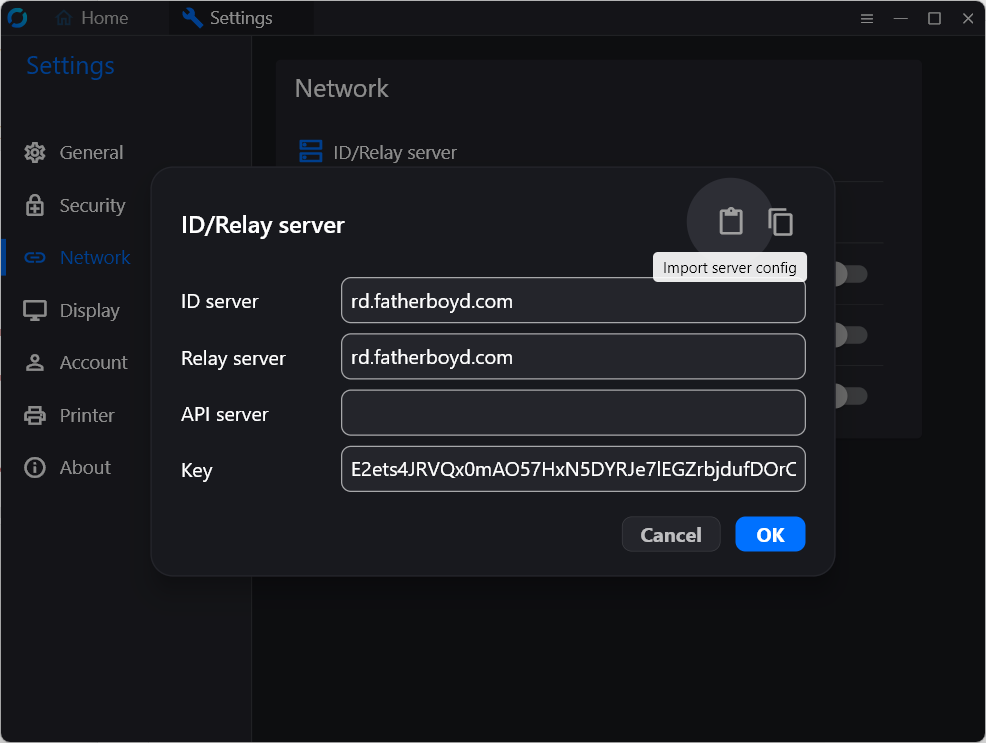
Copy Fr. Andy’s server settings from this page (below).
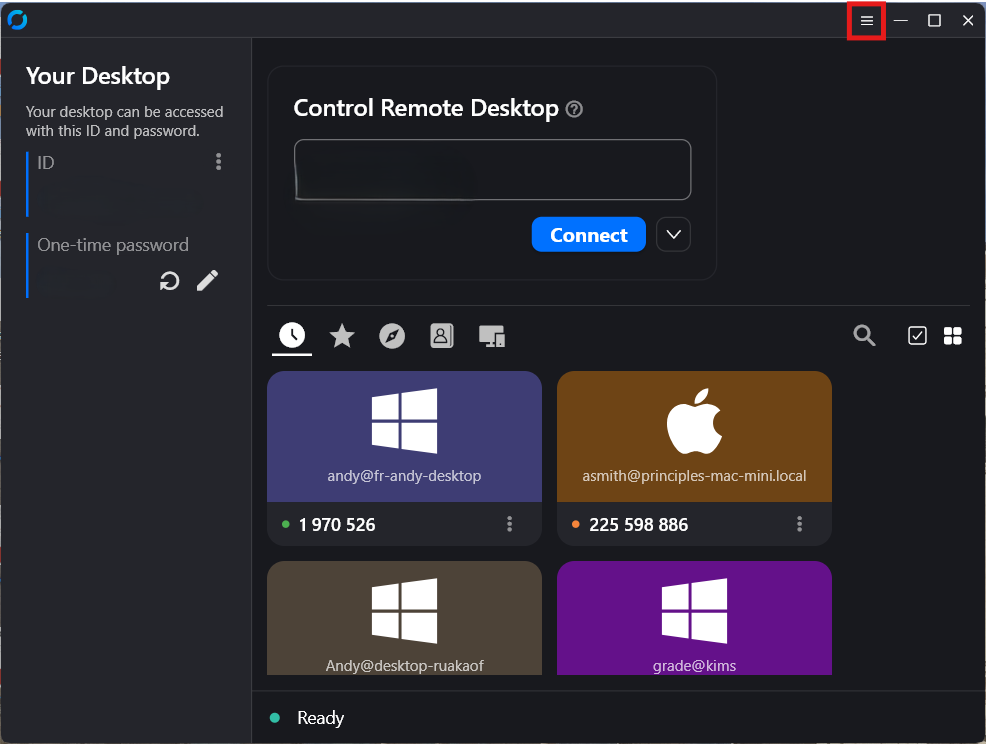
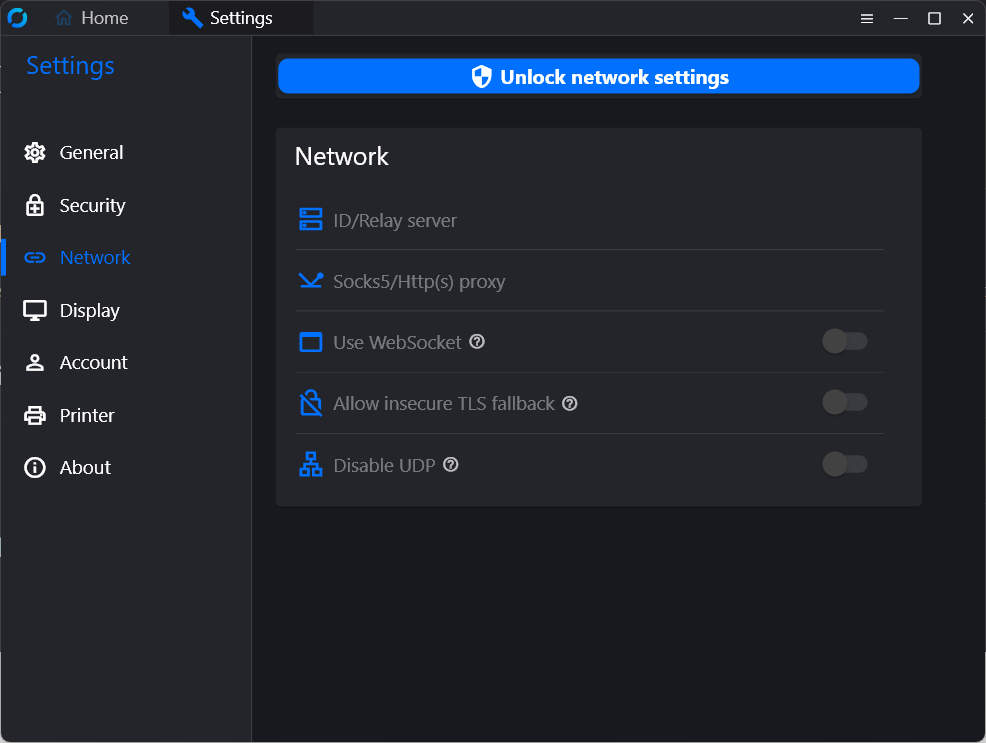
In RustDesk, go to Settings → Network.
Unlock the network settings.
Click Import Server Config.
Click Apply.
Return to the main RustDesk screen.
Send Fr. Andy the number shown as “Your ID” and the one-time password.
Mac
Click the download button above.
Download RustDesk for Mac.
Open the downloaded file.
Move RustDesk into the Applications folder if asked.
Open RustDesk.
If macOS asks whether RustDesk may run, choose Open.
Copy Fr. Andy’s server settings from this page (below).
In RustDesk, go to Settings → Network.
Unlock the network settings.
Click Import Server Config.
Click Apply.
Return to the main RustDesk screen.
Send Fr. Andy your RustDesk ID and one-time password.
Mac users: RustDesk offers different downloads for different types of Macs. If you are not sure which one to choose, please contact Fr. Andy before downloading.
iPhone/iPad
Remote help on iPhone and iPad may be limited. If possible, use a Windows or Mac computer for full remote support.
If Fr. Andy asks you to install RustDesk on your iPhone or iPad:
1. Open the App Store. 2. Search for RustDesk. 3. Install the RustDesk app. 4. Open RustDesk. 5. Follow the instructions in the app. 6. Send Fr. Andy the ID or connection information shown in RustDesk.
Android
1. Open the Google Play Store. 2. Search for RustDesk. 3. Install RustDesk. 4. Open RustDesk. 5. Follow any permission prompts. 6. Copy and import Fr. Andy’s server settings if available in the app. 7. Send Fr. Andy the ID or connection information shown in RustDesk.
Fr. Andy’s RustDesk Server Settings
After installing RustDesk, copy these settings. Then open RustDesk and import them under
Settings → Network → Import Server Config.
Click the image to enlarge. In RustDesk, open Settings → Network, then choose Import Server Config.
After copying, open RustDesk, go to Settings → Network, unlock the settings,
choose Import Server Config, and click Apply.
When You Are Ready
After RustDesk is installed and configured, send Fr. Andy your RustDesk ID and one-time password.
Please also include your name and a short description of the problem.
Make sure you are using the installed RustDesk app and not only a temporary/portable version. You may need to approve a Windows or Mac security prompt.
Open System Settings on your Mac and look for Privacy & Security. Allow RustDesk under Screen Recording and Accessibility. Then quit and reopen RustDesk.